Millisecond precision
A high-resolution engine replays your input on an exact timeline — sub-millisecond scheduling, pixel-exact positions, multi-monitor aware.
Loopnator is a one-button input recorder for Windows. It captures every move, click and scroll — and every keystroke, in Pro — with millisecond precision, then replays them as many times as you need. No scripting, no setup, no learning curve.
3-DAY FREE TRIAL, ALL PRO FEATURES · ONE-TIME · 2 PCs · 14-DAY REFUND · WINDOWS 10/11

The faint line is a real recording — mouse speed over time, dropping to zero wherever the hand paused to click. Every pass drawn over it is that same recording replayed with Humanize: positions and timings re-rolled, so no two loops trace the same line. Humanize is a Pro feature.
A truck arrives: six pallets, same item. One is logged by hand while Loopnator records every move, click and keystroke. Then Replay logs the other five on its own, at 4× speed, while you go and do something that matters.
rec 00:09.33 404 events replay ×5 @ 4.0× 6 pallets logged 0 clicks from you
One portable window, no installer — with a replay engine built to land every click exactly where and when you put it.
A high-resolution engine replays your input on an exact timeline — sub-millisecond scheduling, pixel-exact positions, multi-monitor aware.
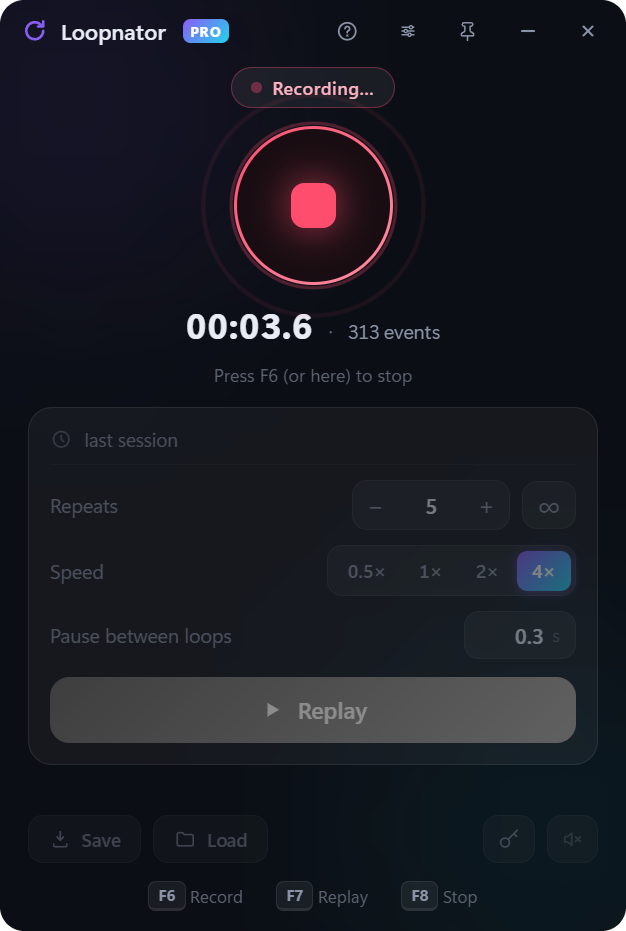
Repeat 3 times or 3,000 — or forever. Speed replays up to 4× or slow them to half. Add a pause between loops if you need one.
Move your real mouse or press Esc and the replay stops instantly. Buttons and keys are always released — nothing ever stays stuck.
Start and stop from inside any app or game. Every hotkey can be rebound with one click — single keys or combos like Ctrl+1.
Your last session is auto-saved and reloaded on launch. Save unlimited recordings as files and load them anytime.
A tiny, dark, always-on-top window you can pin over your game. One portable .exe — no installer, no bloat.
Record one farming run — the clicks, the pauses, the rhythm. Flip the repeat counter to ∞, pick your speed, and Loopnator keeps playing it while you’re somewhere else. The counters go up without you.
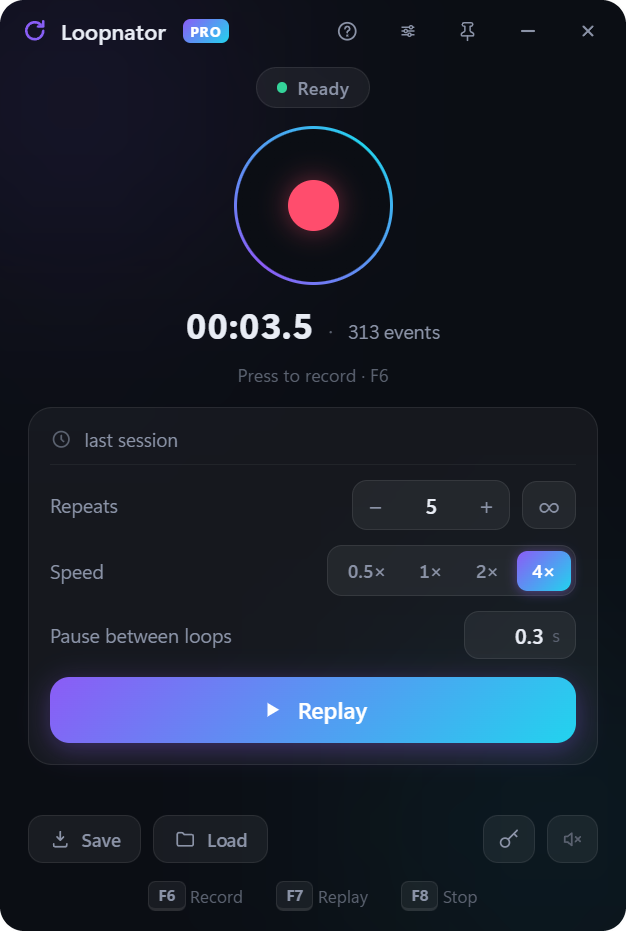
Hit the big round button — or press the record hotkey. The window tucks itself away and Loopnator starts capturing everything you do.
Fill the form. Play the level. Click the buttons. When you’re done, press the hotkey again. Your recording is saved automatically.
Choose how many repeats, pick a speed, hit Replay. Go get a coffee — if you ever need to take over, just move your mouse and it stops.
A plain macro repeats itself to the pixel and to the millisecond, forever. Humanize breaks that: every loop drifts a little, the timing stretches and compresses, the pauses breathe. Same work, never the same run twice.
humanize on position ±4 px timing ±30 % 2 passes, two different strokes
0 to 12 px on its own slider. Every click lands on the target — just never on the exact same pixel as the loop before.
Up to ±50 %, applied gap by gap rather than as one flat offset. The rhythm changes inside the run, the way a hand speeds up and hesitates.
Most macro tools replay one fixed timeline forever. Loopnator re-rolls positions and timings on every single loop, so no two runs are alike.
Same one-button simplicity — the second panel just unlocks when your key says Pro.
Keys are captured alongside the mouse and replayed with correct scan codes — so they land in games too, not just text boxes.
Delete a mis-click, keep only the part that matters, insert a wait, smooth out a jittery path. With undo.
Keep all your macros in one list and give each its own hotkey — press it in any app and that macro runs instantly.
Pick any pixel on screen: wait for it to turn green before each loop, or stop everything the moment it turns red.
Start at 09:00, or every 10 minutes. Stop automatically after N minutes. Set it and walk away.
Hundreds of raw events become a handful of readable steps: moves, clicks, drags, typed text, scrolls. Clean it up, name it, and it’s a macro you can fire from anywhere.
Click any topic for instructions so clear they’re impossible to get wrong.
No subscription, ever. Every 1.x update included.
INSTANT KEY BY EMAIL · CHECKOUT & VAT BY LEMON SQUEEZY · WINDOWS 10/11
Not sure yet? Download the free trial — 3 days with every Pro feature, no signup.
Yes. Download Loopnator and you get 3 days with every Pro feature — no signup, no card. When the trial ends the app locks until you enter a key. It’s the same file buyers get: a license key simply unlocks it.
Browser games: yes, out of the box. Native fullscreen games that read raw input may ignore simulated input, and games running as administrator require Loopnator to run as administrator too. If it doesn’t work for your game, the refund is one email away.
Not with Humanize, in Pro. It shifts the position of every click by a few pixels and stretches or compresses the timing gap by gap — and it re-rolls those variations on every loop, so the same recording never plays back identically twice. The standard version replays exactly what you captured, to the pixel and to the millisecond.
Loopnator records and replays the mouse. Pro adds keyboard recording, the sequence editor, the recording library with hotkeys, humanized replay, colour triggers and the scheduler. Same app — Pro just unlocks the second panel.
No. Pay once, it’s yours. All 1.x updates included.
Two at the same time. Deactivate on one PC with one click to move to another.
Yes, in Pro. Pick any pixel and Loopnator can wait for it to match a colour before each loop, or stop the moment it changes — with an adjustable tolerance for colours that shift slightly.
Yes. It re-checks your license when it starts; if you’re offline it keeps working for 3 days from the last successful check, then asks you to go online once.
The file isn’t code-signed yet, so SmartScreen is cautious with it. Click “More info → Run anyway”. The download is exactly the file we published. Prefer no prompt at all? Install from the Microsoft Store: same app, same trial.
Windows 10 or 11 (64-bit). Nothing else to install — the WebView2 runtime Loopnator uses ships with Windows 11 and with Microsoft Edge on Windows 10.
Email support@loopnator.com within 14 days of buying and you get your money back, no argument. Write even if you’re past that window — most problems turn out to be a five-minute fix (usually a hotkey clash or an app that needs Loopnator running as administrator). Your statutory rights as a consumer are unaffected.
Independent Windows utilities: one-time price, no subscription, everything runs on your machine.

Keep-awake utility — forever, for a set time, while an app runs, or on a schedule.
getstayup.com →
A quiet desk-sitter — small human-like mouse moves while you are away, instant pause the moment you are back.
awaysitter.com →
Watches for a cue — a pixel, a window, a timer — then clicks, types or launches what you set.
cuevalet.com →